Configure app access control
If the RingCentral panel or dialpad is missing because Dataverse is rejecting app access, add RingCentral for Dynamics 365 to the target environment's Dataverse application list. In a Managed Environment, this makes the app allowed in app access control.
Before you begin
- You have administrator access to the Microsoft Entra tenant that owns the target Power Platform environment.
- You can view Enterprise applications in Microsoft Entra.
- You have Power Platform admin or Dynamics 365 admin access to the target environment.
- The target environment is a Managed Environment.
- You know the target environment URL, such as
contoso.crm.dynamics.com.
Auditing is optional. You only need it if you want to inspect allowed and denied access events.
Verify the RingCentral application
- Sign in to the Azure portal or Microsoft Entra admin center.
- Confirm the selected directory is the tenant that owns the target Power Platform environment.
- Open Microsoft Entra ID > Enterprise applications > All applications.
- Set Application Type to All applications, then select Apply.
- Filter by Application ID starts with and enter
d00aed12or the full ID below. Select Apply and open the matching application.
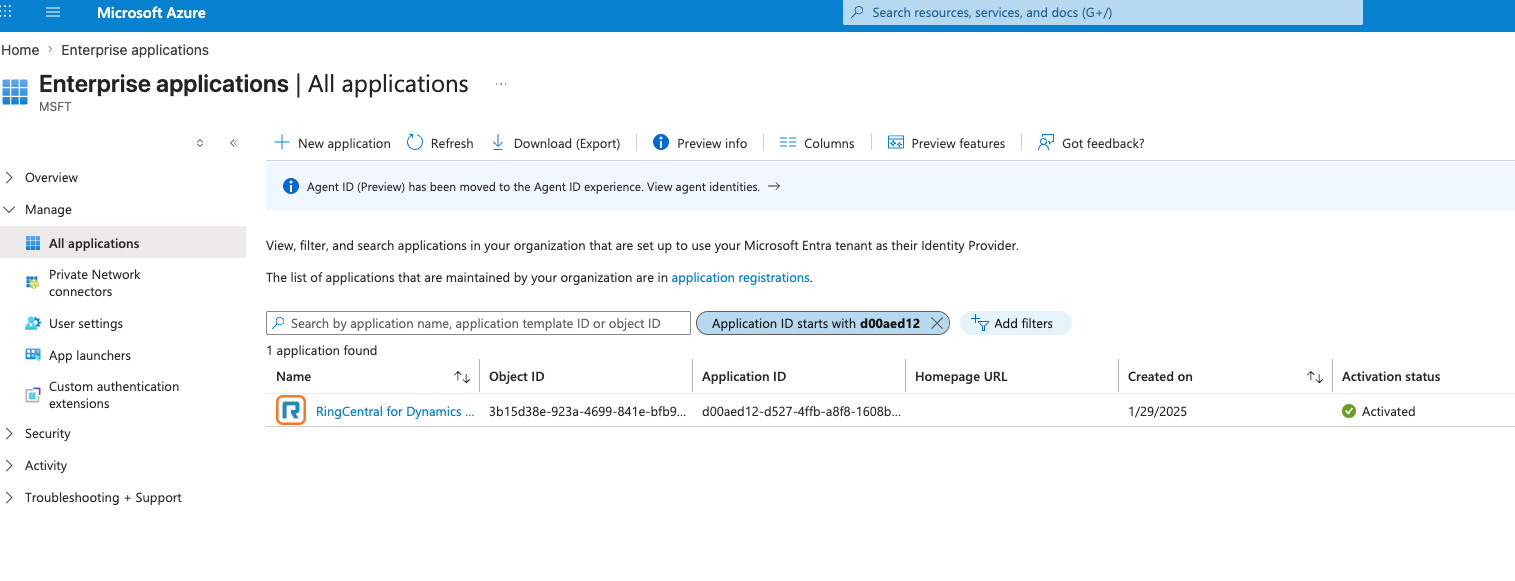
- Confirm the Application ID is
d00aed12-d527-4ffb-a8f8-1608bb89aebd.
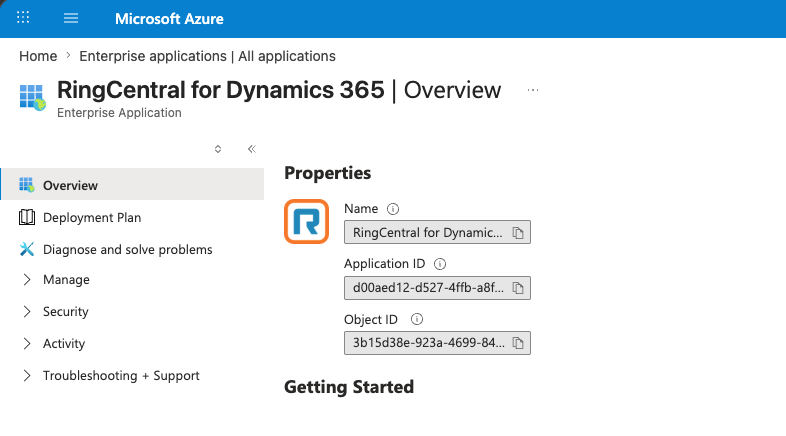
| Application detail | Value |
|---|---|
| Application ID / Client ID | d00aed12-d527-4ffb-a8f8-1608bb89aebd |
| Application display name | RingCentral for Dynamics 365 |
Use the Application ID, not the Object ID. The Object ID identifies the local service principal and is different. If the application does not appear, complete the normal admin consent or onboarding flow for the app in the customer tenant, then repeat this check.
Add the application to the Dataverse application list
- Sign in to the Power Platform admin center.
- Go to Manage > Environments and select the target environment.
- Copy the environment URL. Use only its host name in the address below.
- In a new tab in the same signed-in browser session, open this URL, replacing
<EnvironmentURL>with the environment host:
https://<EnvironmentURL>/main.aspx?forceUCI=1&pagetype=entitylist&etn=application&viewid=76302387-6f41-48e5-8eaf-4e74c1971020&viewType=1039
For example: https://contoso.crm.dynamics.com/main.aspx?forceUCI=1&pagetype=entitylist&etn=application&viewid=76302387-6f41-48e5-8eaf-4e74c1971020&viewType=1039.
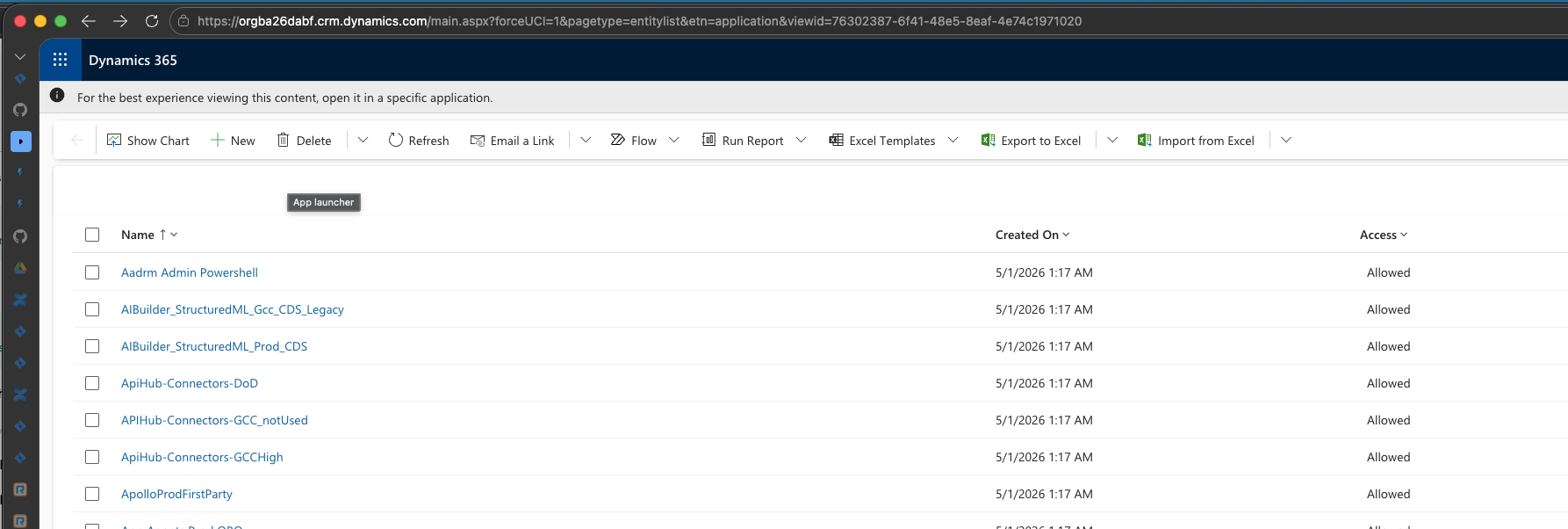
- Search the application list for
d00aed12-d527-4ffb-a8f8-1608bb89aebd. - If the application is already listed, open it and verify its Application ID, name, and access. If its access is Blocked, change it to Allowed. Otherwise, select + New and enter:
| Field | Value |
|---|---|
ApplicationId |
d00aed12-d527-4ffb-a8f8-1608bb89aebd |
Name |
RingCentral for Dynamics 365 |
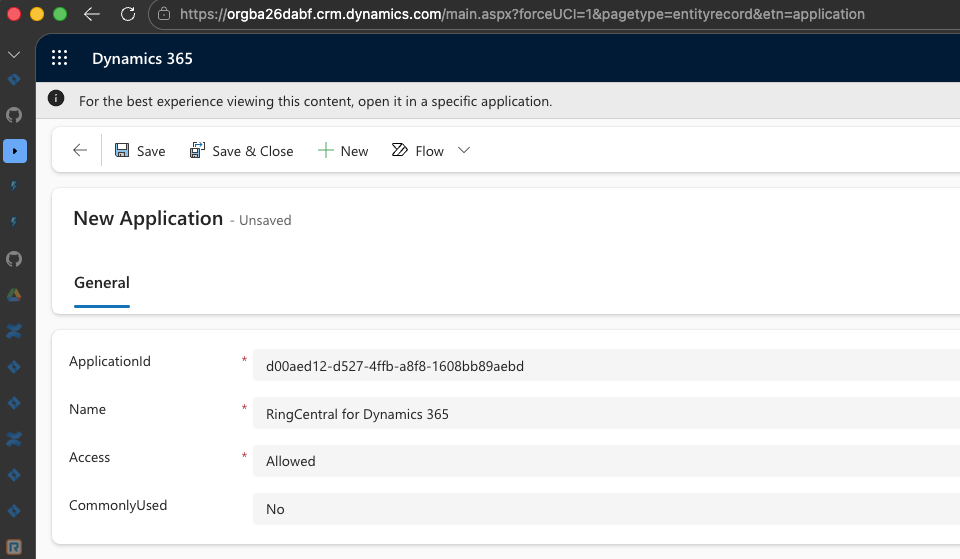
- Select Save and confirm the application appears in the list.

Confirm app access control
- In the Power Platform admin center, go to Security > Identity and access > App access control.
- Select the same target environment, then select Set up app access control.
- Search for RingCentral for Dynamics 365 or its application ID.
- Confirm the application is listed with ID
d00aed12-d527-4ffb-a8f8-1608bb89aebdand status Allowed.
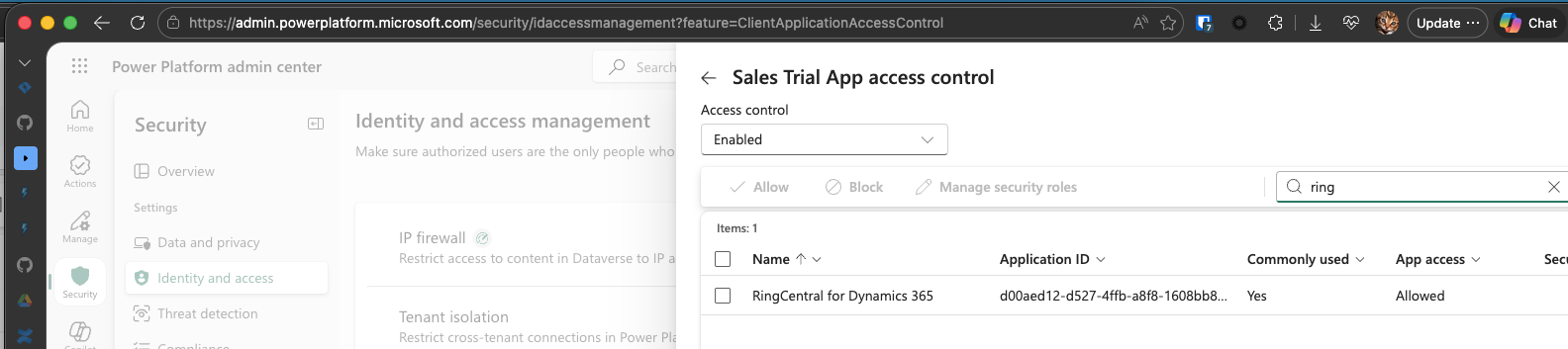
- Close the panel without making changes. The application was allowed when it was added to the Dataverse application list; no additional add action is needed here.
Optional: verify access in audit logs
Use these steps only if Dataverse auditing is enabled and you want to confirm access events. The event may take up to one hour to appear after the application is added.
- Trigger normal application access to the target Dataverse environment.
- In the Power Platform admin center, go to Manage > Environments, select the target environment, then select Settings.
- Go to Audit and logs > Audit summary view.
- Filter Event for
ApplicationBasedAccessAllowedandApplicationBasedAccessDenied. - Confirm the application access event is
ApplicationBasedAccessAllowed.
Troubleshooting
- The application is missing from Enterprise applications: Complete admin consent or onboarding in the customer tenant, then search again.
- The application is missing from app access control: Confirm it was added to the Dataverse application list for the same environment.
- The application was added with the wrong ID: Delete the manually added Dataverse application row and add it again with Application ID
d00aed12-d527-4ffb-a8f8-1608bb89aebd. - Access is still denied: Wait up to one hour, then confirm the same environment was used for both the Dataverse application list and app access control.