Pipedrive
Pipedrive is designed to help small businesses grow. For over ten years, Pipedrive has been committed to building the best CRM – a CRM by and for salespeople. The result is an easy-to-use, effective sales tool that centralizes your data, helping you visualize your entire sales process and win more deals.
RingCentral's integration with Pipedrive helps streamline communications between customers, and helps sales staff to better support them through their entire lifecycle by helping to manage and store communication history with customers, capture important communication metadata and more.
Setup and configuration
Install the extension
If you have not already done so, begin by installing App Connect from the Chrome web store.
Connect to Pipedrive
Once the extension has been installed, follow these steps to setup and configure the extension for Pipedrive.
-
Make sure you are logged in to Pipedrive.
-
Open App Connect and select Pipedrive as your CRM.
-
When prompted, copy the whole URL from your Pipedrive browser tab and paste it into the field, then continue.
-
Click Connect. A Pipedrive authorization window opens. Scroll to the bottom and click "Allow and Install." The window closes on its own once authorization completes.
When you login successfully, the Chrome extension will automatically update to show you are connected to Pipedrive. If you are connected, the button next to Pipedrive will say, "logout".
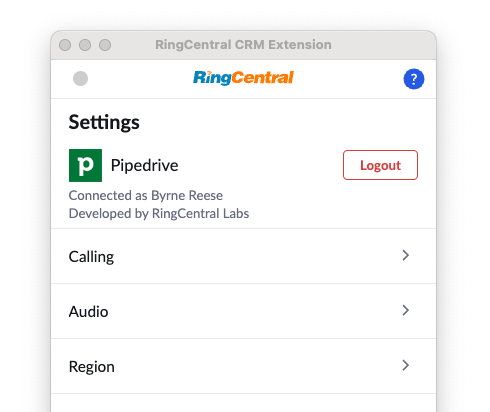
And with that, you will be connected to Pipedrive and ready to begin using the integration.
Reconnecting when your session expires
Pipedrive may occasionally invalidate your connection, for example after the app is uninstalled from your Pipedrive account or when the stored authorization can no longer be refreshed. When App Connect detects this, it shows a notice and opens the Pipedrive authorization window for you. Click "Allow and Install" to reconnect. Your settings are kept.
If you close the window without authorizing, App Connect will not prompt again for 5 minutes. You can reconnect at any time by clicking Connect next to Pipedrive in the settings.
Activity type mismatch
Call or SMS logging fails?
If you are seeing Call or SMS logging fails with a error message talking about activity type, please read the solution below
Call logging in Pipedrive requires an activity type whose name contains "call" (case-insensitive) to be created in your Pipedrive account so that it can pick up the wanted activity type. Same story for SMS logging, which will need activity type name contains "sms" (case-insensitive).
Once created/updated, clear/refresh contact match, then App Connect will use this activity type.
Tailoring your configuration
Pipedrive's system exhibits a relatively uncommon behavior that is the result of a perfectly normal function of the frameworks used by their engineers. However, this behavior is unfortunate because it causes the dialer to be removed from the page after it has loaded. You may see it appear briefly, and then POOF! It is gone.
To address this, go our advanced settings and set the config option called "Click-to-dial inject delay" to 2 or 3. Depending upon network latencies, you may need to increase this number, but usually a value of 2 is sufficient.